
Deep dive into cloud-init: instance customization and metadata delivery in OpenStack
Virtual machines in cloud environments are instances of cloud-optimized images designed with two critical requirements: they must be generic enough to serve multiple use cases, and they must boot quickly. A single Ubuntu Cloud image, for example, can be used to launch a web server, database node, or application server without any modifications to the image itself.
But how does a generic VM become a specialized component of your infrastructure? One solution is metadata and cloud-init.
Cloud orchestrators like OpenStack, AWS, Azure, and others (to name a few) expose metadata to running instances. This metadata contains instance-specific information such as the hostname, network configuration, and SSH keys. The cloud-init service, embedded in cloud images, retrieves this metadata during boot and uses it to customize the VM before any user interaction.
Without any custom user configuration, cloud-init handles essential tasks automatically based on the default configuration included in cloud images. For example, Ubuntu 24.04 cloud images come with these modules enabled out of the box:
- Network configuration - configures network interfaces to use DHCP for automatic IP address assignment
- Filesystem expansion - automatically grows the root partition and filesystem to use all available disk space
- Hostname configuration - sets the system hostname to match the instance name from metadata
- User and group creation - configures default users with proper sudo access
- SSH key injection - automatically adds your public key to the authorized_keys file for the default user
Of course, you can also customize VMs using configuration management systems like Ansible or Puppet, but these tools require the instance to boot first, SSH to be available, and manual execution of playbooks or agent startup. Cloud-init runs automatically on first boot, configuring the instance before any external system connects to it.
Cloud-init is a powerful automation framework. Beyond basic setup, it can install packages, run scripts, configure users and groups, set up storage, deploy configuration management agents, manage files, and integrate with external systems.
This article covers metadata in OpenStack and how instances use it for configuration. However, many of the cloud-init concepts, user-data formats, and customization techniques described here apply to any cloud-init-based instance across different cloud platforms and even bare metal environments. You’ll see how metadata reaches instances through Config Drive and the Metadata Service, including the network architecture behind 169.254.169.254. We explain cloud-init’s boot stages, modules, and orchestration, show how to customize instances using different user-data formats, and provide practical examples for both Linux and Windows. Finally, we cover debugging techniques for when things don’t work as expected.
Table of Contents
- Metadata in OpenStack
- What is Cloud-Init?
- Cloud-init details
- Practical examples
- Debugging Cloud-Init
- Summary
Metadata in OpenStack
Before a VM can configure itself, it needs to know who it is and what properties it should have. In OpenStack, this information flows from the cloud orchestrator to the instance as metadata. When you launch an instance, OpenStack collects information from multiple sources: the instance’s own properties (name, ID, availability zone), network configuration assigned by Neutron, and user-provided data like SSH keys. This instance-specific information gets aggregated by Nova and made available to the running instance through the metadata service. Separately, image metadata and flavor metadata are used by Nova and the hypervisor to configure how the VM runs at the infrastructure level, but these are not exposed inside the guest operating system.
Not all metadata is consumed by cloud-init. Some metadata configures the hypervisor layer and affects how the VM runs on the physical host. For example, image and flavor metadata can specify CPU pinning to dedicate specific CPU cores to an instance, configure NUMA topology for performance optimization, select virtio or SCSI storage drivers, enable hardware passthrough for GPUs or network cards, or set disk I/O limits and network QoS policies. These configurations happen at the KVM/libvirt level and don’t require any awareness from the guest operating system.
Additionally, users can pass custom metadata key-value pairs when launching instances. These custom metadata entries are accessible to applications running inside the VM through the metadata service, allowing you to configure application-specific settings, deployment environments, or integration parameters. However, cloud-init itself does not process these custom metadata entries directly.
In this article, we focus specifically on metadata that cloud-init uses to customize and configure instances during first boot. Other uses of metadata in OpenStack, such as image metadata and flavor metadata that configure hypervisor features, will be covered in a separate article.
Types of data
OpenStack Nova distinguishes between three key types of data passed to an instance:
- Metadata - System-level information provided by the cloud platform. This is a JSON structure containing instance identity and environment information that cloud-init uses to configure the system. Selected important fields include:
uuid- unique identifier for the instancehostnameandname- the hostname assigned to the instanceavailability_zone- the availability zone where the instance runspublic_keys- SSH public keys for initial accessproject_id- the OpenStack project (tenant) ID
The instance queries this data from
http://169.254.169.254/openstack/latest/meta_data.json. Network configuration is provided separately athttp://169.254.169.254/openstack/latest/network_data.jsonand contains interface details, DHCP settings, MTU values, and DNS server addresses. - User data - The customization payload provided by the user when launching the instance. From the OpenStack API perspective, this is a base64-encoded string limited to 64KB in size. From the VM’s perspective, it’s the instruction manual for customization. User data can be:
- A bash script starting with
#!/bin/bash - A cloud-config YAML file starting with
#cloud-config - A MIME multi-part archive combining multiple formats
- Any other executable format cloud-init recognizes (Python, Perl, etc.)
The instance retrieves this from
http://169.254.169.254/openstack/latest/user_data. - A bash script starting with
Vendor data - Configuration injected by the cloud administrator into every instance automatically. This is configured on Nova API servers in
nova.confand allows cloud operators to provide baseline configuration that applies to all instances.Some OpenStack deployments use vendor data to set a random root password and display it on the virtual console during first boot. This provides emergency access through the console (not SSH, as root SSH login is typically disabled) if something goes wrong with SSH key injection. However, this behavior depends on how your cloud is configured - many deployments don’t configure vendor data at all.
When configured, vendor data enables cloud operators to set organization-wide defaults: installing monitoring agents, configuring centralized logging, setting security baselines, registering instances with asset management systems, or applying compliance requirements. Vendor data uses the same formats as user data (cloud-config YAML, shell scripts, MIME multi-part).
Users maintain ultimate control over vendor data. When both vendor data and user data provide cloud-config, user-supplied cloud-config is merged over vendor-supplied cloud-config, giving user configurations priority. Users can also disable vendor data execution entirely or selectively disable specific vendor data components through their user data configuration. For script-based vendor data (shell scripts), both vendor and user scripts execute, with vendor scripts running first during the first boot only.Vendor data execution behavior
While vendor data follows the same format rules and processing logic as user data, its execution has several distinctive characteristics. By default, cloud-init processes vendor data only during the instance’s first boot, not on subsequent reboots. This differs from user data, which can be configured to run on every boot if needed.
The separation between vendor-supplied and user-supplied configurations extends to script storage. When vendor data includes shell scripts, cloud-init stores them in a different directory than user-supplied scripts (
/var/lib/cloud/instance/scripts/vendor/versus/var/lib/cloud/instance/scripts/). This namespace separation prevents conflicts between operator-provided and user-provided scripts with the same filename.Users who want to prevent vendor data execution can do so by removing the
scripts_vendormodule fromcloud_final_modulesin a drop-in configuration file in/etc/cloud/cloud.cfg.d/, or by overriding specific vendor-supplied cloud-config values through their own user data with higher merge priority. This gives users the final say over what runs on their instances, even when cloud operators provide vendor data configurations.There are two types of vendor data:
- Static vendor data configured in
nova.confand identical for all instances. Example configuration:[api] vendordata_providers = StaticJSON vendordata_jsonfile_path = /etc/nova/vendor_data.jsonThe JSON file contains cloud-config that applies to every instance.
- Dynamic vendor data fetched from an external REST API service, allowing per-instance or per-project customization. Example configuration:
[api]
vendordata_providers = DynamicJSON
vendordata_dynamic_targets = http://vendor-data-service:8080/
Dynamic vendor data requires network connectivity from the Nova API servers to the vendor data service during instance creation. If this connectivity is not available, static vendor data should be used instead.
- Static vendor data configured in
How metadata reaches the VM
How does data move from the Nova database to a running VM? OpenStack provides two delivery mechanisms.
Config Drive
The config drive is an ISO9660 or VFAT filesystem containing all metadata, user data, and vendor data. Nova creates this small virtual disk and attaches it to the instance as a virtual CD-ROM or as an additional disk device. The filesystem has a label config-2 which cloud-init uses to identify and automatically mount the drive during boot to read the configuration data. The actual device path varies depending on the instance configuration (it could be /dev/sr0, /dev/sr1, /dev/vdb, etc.), but cloud-init finds it automatically by searching for the filesystem label.
This approach works without any network connectivity, making it essential for scenarios like network appliances (routers, firewalls, load balancers) that need to configure their network interfaces before they can access the metadata service. The config drive is typically mounted read-only (ISO9660 filesystem) and is static - it cannot be updated after the instance launches. When rebuilding or resizing an instance, Nova generates a new config drive ISO with fresh metadata, completely replacing the previous one.
Config drive can be enabled in several ways: users can request it for specific instances using the --config-drive true flag when launching instances, administrators can set it in image metadata with img_config_drive=true to enable it for all instances created from that image, or cloud operators can enforce it globally by setting force_config_drive = true in nova.conf (though this global setting applies to all instances cloud-wide, not per-project or per-instance). The per-instance approach is the most common, allowing users to selectively enable config drive only when needed.
The Metadata Service (169.254.169.254)
The metadata service provides instance-specific data through HTTP requests to the link-local address 169.254.169.254. Unlike config drive, this method requires network connectivity but allows dynamic updates and doesn’t consume virtual hardware resources.
When an instance makes an HTTP request to http://169.254.169.254/openstack/latest/meta_data.json, the metadata service receives this request, identifies which instance is making the call, and returns the appropriate metadata from Nova’s database. This approach is more flexible than config drive because the metadata can be updated while the instance is running (though cloud-init typically only reads it during boot stages).
Choosing between Config Drive and Metadata Service
Both methods can coexist on the same instance. Cloud-init uses whichever datasource it detects first according to its configured priority.
Use Config Drive when:
- Deploying network appliances (routers, firewalls, load balancers) that need to configure their own network interfaces before they can reach the metadata service
- Using PCI passthrough for network devices, which bypasses the virtual network infrastructure (OVS bridge, OpenFlow rules) required for metadata service routing
- Working in environments where the metadata service is unreliable or not available
- Building images for bare metal deployments where no metadata service exists
- Requiring guaranteed metadata availability even if networking fails during boot
Use Metadata Service when:
- Deploying standard workloads (web servers, application servers, databases) with predictable networking
- Needing to update instance metadata after launch without recreating the instance
- Working in large-scale deployments where attaching an additional virtual device to thousands of instances adds overhead
- Preferring the standard cloud-native approach that works consistently across OpenStack, AWS, Azure, and GCP
In most production OpenStack environments, the metadata service is the default and recommended approach. Config drive is typically enabled only when explicitly needed for specific use cases.
When both mechanisms are available, cloud-init’s datasource priority (configured in /etc/cloud/cloud.cfg) determines which one is used. You can customize this datasource priority order as described in the Configuration files section later in this article.
The metadata service architecture in ML2/OVN
In OpenStack deployments using ML2 plugin with OVN (Open Virtual Network), the metadata service architecture is distributed and runs locally on each compute node.
Network namespace isolation
Each Neutron network that has instances running on a compute node gets its own dedicated metadata service namespace (typically named ovnmeta-<network-uuid>). This means a single compute node can run multiple metadata service instances, one per network. Each namespace is isolated from the host and contains:
- A virtual interface with an IP address from the subnet’s allocation pool
- The magic metadata address
169.254.169.254configured on the same interface - An HAProxy instance listening on port 80
The HAProxy service acts as a reverse proxy, forwarding metadata requests along with network context headers (such as the source IP address via X-Forwarded-For and network/router identifiers) to the Neutron Metadata Agent through a Unix socket. The Neutron Metadata Agent identifies the requesting instance by correlating the source IP address and network ID with its database, then adds critical authentication headers including X-Instance-ID and X-Tenant-ID (project ID). The agent also signs the request with an HMAC signature using a shared secret (metadata_proxy_shared_secret) before forwarding it to the Nova Metadata API service. These authentication mechanisms are critical for security: Nova Metadata API verifies the signature and headers to ensure that the request is authorized for the specific instance, preventing instances from accessing metadata belonging to other instances or projects (see Figure 1).
ip netns exec ovnmeta-<network-uuid> bash), you can initiate network traffic from within the tenant network to test connectivity to instances. This is particularly useful when instances are not directly reachable from external networks but you need to verify tenant network connectivity. 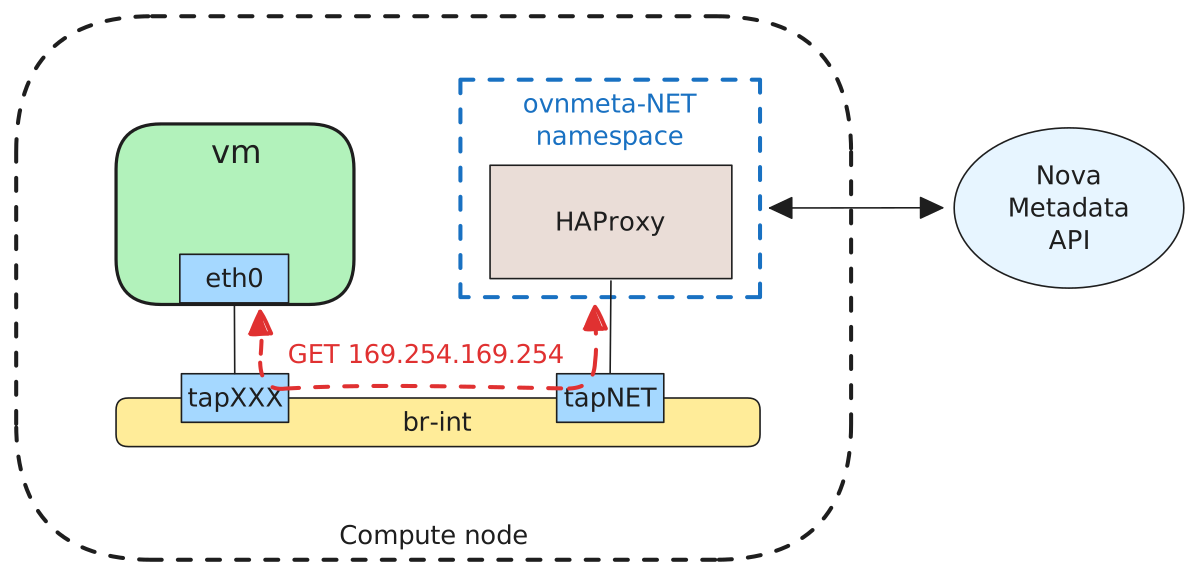 Figure 1: ML2/OVN metadata service architecture showing network namespace isolation on compute nodes. Each tenant network receives its own dedicated metadata namespace with HAProxy proxying requests from instances to the Neutron Metadata Agent, which adds authentication headers before forwarding to Nova Metadata API. The architecture ensures that instances from different networks cannot access each other’s metadata despite using the same destination IP (169.254.169.254).
Traffic flow with OpenFlow
When an instance makes an HTTP request to 169.254.169.254:80, the traffic never leaves the compute node. Here’s the complete path:
- The instance sends the request through its virtual network interface (tap device)
- The tap device is connected to the OVS integration bridge (
br-int) - OpenFlow rules in
br-intmatch traffic destined for169.254.169.254:80 - These rules redirect the traffic to the metadata service’s tap interface (also connected to
br-int) - The traffic enters the metadata service’s network namespace
- HAProxy receives the request, adds network context headers (
X-Forwarded-For, network identifiers), and forwards it to the Neutron Metadata Agent through a Unix socket - The Neutron Metadata Agent identifies the instance, adds authentication headers (
X-Instance-ID,X-Tenant-ID, HMAC signature), and forwards the request to Nova Metadata API - Nova Metadata API verifies the signature and returns the instance-specific metadata
- The response travels back through the same path
This architecture ensures that metadata requests are handled locally on the compute node without requiring traffic to traverse the physical network. The network namespace isolation guarantees that instances from different projects or networks cannot access each other’s metadata, even though they all use the same destination IP address.
What is Cloud-Init?
Cloud-init is an industry-standard, multi-distribution initialization system for cloud instances. Written in Python, it runs during the early boot process and configures instances based on metadata provided by the cloud platform. Cloud-init is installed by default on official cloud images from Ubuntu, Fedora, CentOS, Debian, RHEL, and many other distributions. It works across all major cloud providers including OpenStack, AWS, Azure, Google Cloud, and others, and can even operate in bare metal environments.
The cloud-init package includes a daemon process, configuration files stored in /etc/cloud/, and runtime data cached in /var/lib/cloud/. Its modular architecture allows cloud operators and users to customize which configuration tasks run and when they execute during the boot sequence.
Datasources
Cloud-init’s portability comes from datasources. A datasource is a plugin that knows how to retrieve metadata and user data from a specific cloud platform or environment. When cloud-init starts, it probes available datasources in order of preference to determine where it’s running and how to fetch configuration data.
Common datasources include OpenStack (reads from the metadata service at 169.254.169.254 or from config drive), EC2 (Amazon Web Services metadata service), Azure (Microsoft Azure’s instance metadata), GCE (Google Compute Engine metadata server), NoCloud (allows providing data via local files or HTTP, useful for testing and bare metal [1]), and others.
Once cloud-init identifies its datasource, it uses that plugin to retrieve all metadata, user data, and vendor data. This abstraction layer is why the same cloud image can boot on OpenStack, AWS, and Azure without modification. Cloud-init automatically adapts to each platform.
The datasource detection process follows a configured priority list defined in /etc/cloud/cloud.cfg. Cloud-init probes each datasource in order and uses the first one that responds successfully. For example, the default datasource list in Ubuntu cloud images is typically [ NoCloud, ConfigDrive, OpenStack, ... ], meaning cloud-init first checks for NoCloud data, then config drive, then the OpenStack metadata service. This ordering ensures that locally attached data sources are preferred over network-based ones, reducing boot time when config drive is present.
When multiple datasources could potentially work (for example, both config drive and metadata service are available), cloud-init uses only the first matching datasource and ignores the others. This behavior is important to understand: if you attach a config drive to an instance that also has access to the metadata service, cloud-init will use the config drive data and never query the metadata service. You can customize the datasource priority order by creating a configuration file in /etc/cloud/cloud.cfg.d/ as shown in the Configuration files section later in this article.
To use NoCloud, you have two options. First, you can create a filesystem with the label
cidata containing two files: user-data with your cloud-config and meta-data with basic instance information like instance-id: test-vm-001 and local-hostname: testvm. Attach this as a virtual disk to your VM, and cloud-init will automatically detect it. Second, you can pass kernel parameters to specify the data location directly:
ds=nocloud;s=http://192.168.1.10/cloud-init/ or ds=nocloud;s=file:///var/lib/cloud/seed/nocloud/. This is especially useful when testing cloud-init configurations locally with KVM/QEMU before deploying to production, or when deploying bare metal servers that need automated configuration without a full cloud orchestrator. Many developers use NoCloud with tools like
cloud-localds (from the cloud-utils package) to quickly generate seed images for testing: cloud-localds seed.img user-data.yaml meta-data.yaml creates an ISO image you can attach to any VM. Cloud-Init for Windows
While cloud-init is designed for Linux systems, Windows instances use Cloudbase-Init, a compatible implementation written specifically for Windows. Cloudbase-Init provides the same functionality as cloud-init but integrates with Windows systems through PowerShell scripts and Windows-native configuration methods. It supports the same datasources and user data formats, allowing consistent automation across both Linux and Windows instances in the same cloud environment.
Cloud-init details
Cloud-init operates through a series of boot stages, each executing at a specific point in the system initialization process. The distinction between stages and modules is important for customization and debugging.
A stage is a phase in the boot process when cloud-init runs (local, network, config, final). Each stage is implemented as a systemd service unit. A module is a specific configuration task that runs within a stage (for example, the users_groups module creates user accounts, the ssh module manages SSH keys). Modules are defined in /etc/cloud/cloud.cfg and organized into lists that execute during specific stages.
Boot stages
Cloud-init’s execution is controlled by a systemd generator and four main service stages. The generator runs first to determine if cloud-init should execute at all, then the four stages execute sequentially during the boot process.
Generator
Before any cloud-init services run, the cloud-init generator checks if cloud-init should execute. This lightweight process runs very early in the systemd initialization and checks for /etc/cloud/cloud-init.disabled. If this file exists, all cloud-init services are disabled and nothing executes. This mechanism allows you to completely disable cloud-init without uninstalling the package, which is useful when creating custom images or troubleshooting.
1. Local stage (cloud-init-local.service)
The local stage runs before networking is configured and its primary purpose is to detect local datasources and apply network configuration to the system. This stage only searches for datasources that don’t require network connectivity, particularly Config Drive and NoCloud (when configured locally). If a config drive is found, cloud-init reads the network configuration from it and applies it to the system, allowing subsequent stages to use the network. This stage does not execute any modules from the cloud_init_modules list — its sole responsibilities are datasource detection and network configuration application. The critical limitation here is that you have no network access at this point, so you cannot download files, query APIs, or install packages.
2. Network stage (cloud-init.service)
The network stage runs after basic networking is configured and its primary purpose is to query network-based datasources and process user data. If no local datasource was found in the local stage, this stage queries the metadata service at 169.254.169.254 to retrieve all metadata, user data, and vendor data. This stage works with network-based datasources including the OpenStack metadata service, EC2, Azure, and GCE. Once the data is retrieved, cloud-init processes the user data and executes all modules from the cloud_init_modules list. Modules running in this stage typically include bootcmd for early boot commands (the first module to execute, before any other configuration), write_files for creating files, growpart and resizefs for expanding disk partitions and filesystems, disk_setup and mounts for configuring storage, set_hostname and update_hostname for hostname configuration, users_groups for creating users, and ssh for SSH key management. Note that the specific module list may vary by distribution and version - check /etc/cloud/cloud.cfg on your system for the exact configuration.
3. Config stage (cloud-config.service)
The config stage runs after the network is available and user data has been processed, and this is where system-wide configuration and package management happens. Modules running in this stage typically include snap for snap package management, ssh_import_id for importing SSH keys from GitHub or Launchpad, keyboard and locale for regional settings, apt_configure for configuring package repositories, ubuntu_pro for Ubuntu Pro token attachment, ntp for time synchronization, and timezone for timezone configuration. These modules handle system-level configuration that requires the network to be fully operational. The specific module list varies by distribution and version.
4. Final stage (cloud-final.service)
The final stage runs last in the boot process, after all other services have started, and its purpose is to execute user scripts, install packages, and run configuration management tools. This stage runs as late as possible in the boot sequence to ensure that the system is fully initialized and all dependencies are available. Modules running in this stage typically include package_update_upgrade_install for installing and upgrading packages, configuration management modules like puppet, chef, ansible, and salt_minion, script execution modules like scripts_vendor, scripts_per_once, scripts_per_boot, scripts_per_instance, and scripts_user, and distribution-specific modules like landscape, lxd, and ubuntu_drivers. This is where user-provided scripts execute and configuration management systems can take over to apply additional configuration. Check your distribution’s /etc/cloud/cloud.cfg for the exact module list.
Figure 2 illustrates the timeline of these four boot stages and their relationship to the network initialization process.
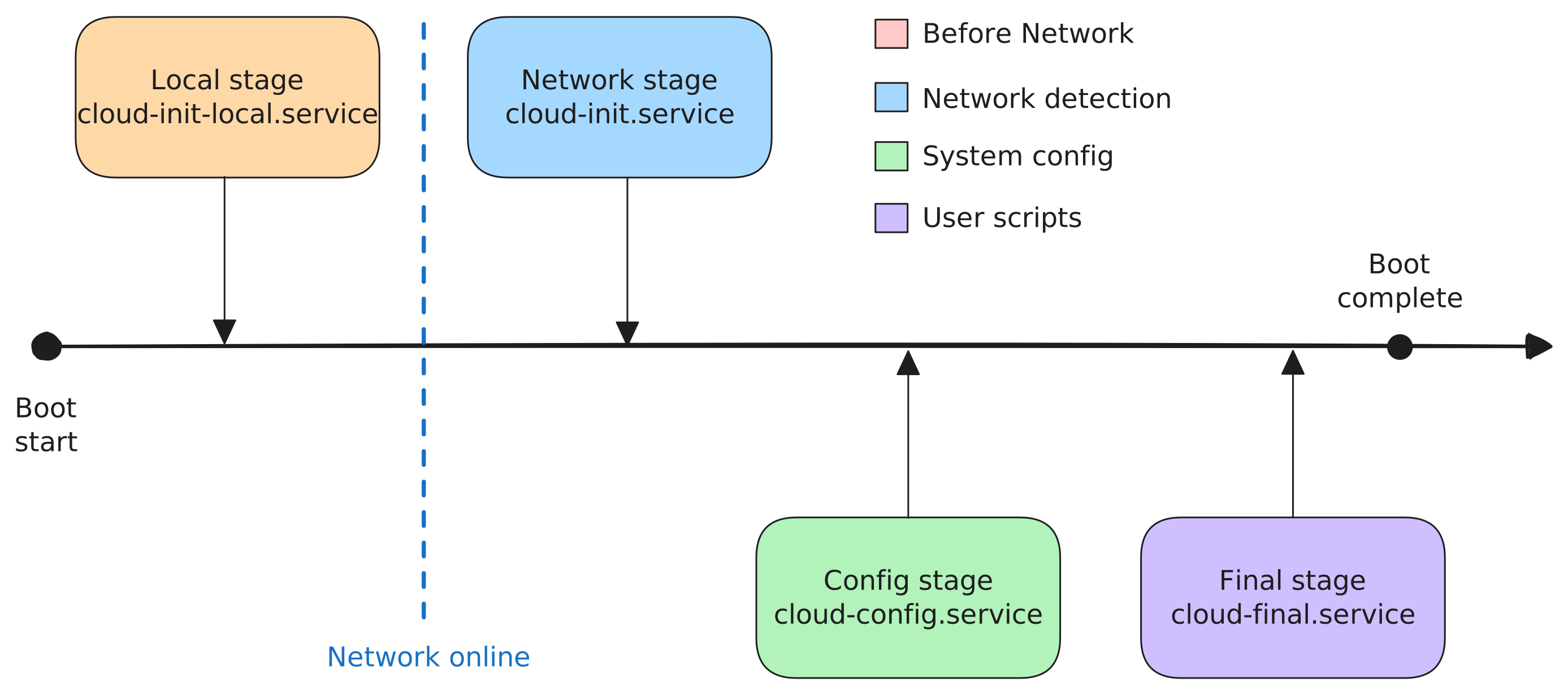 Figure 2: Cloud-init execution stages during the OS boot process. The local stage runs before networking is configured, the network stage spans the network initialization boundary, and the config and final stages run after the network is fully operational. Each stage is implemented as a systemd service unit that executes specific modules at precise points in the boot sequence.
Modules
Modules are the building blocks of cloud-init functionality. Each module performs a specific configuration task, such as creating users, installing packages, or configuring SSH. Modules are defined in /etc/cloud/cloud.cfg and organized into three lists that determine when they execute during the boot process:
cloud_init_modules- modules that run in the network stage (early boot, after datasource detection and network initialization)cloud_config_modules- modules that run in the config stage (after network is available, system configuration)cloud_final_modules- modules that run in the final stage (last phase, user scripts and package installation)
Modules are idempotent and platform-agnostic, meaning they produce the same result when run multiple times and work across different Linux distributions without modification. For example, the users_groups module creates users consistently on Ubuntu, RHEL, and SUSE without requiring distribution-specific commands. This abstraction allows you to write portable cloud-config files that work in any cloud environment.
Each module can be configured through cloud-config YAML. For instance, the write_files module accepts a list of files to create with their content and permissions, the apt module configures package repositories and mirrors, and the runcmd module executes arbitrary shell commands. The module configuration is passed through the user data and processed during the appropriate boot stage.
Modules run in a specific order within each stage as defined in /etc/cloud/cloud.cfg. This ordering ensures dependencies are respected. For example, the apt_configure module runs before package_update_upgrade_install to ensure repositories are configured before attempting to install packages. You can customize which modules run and in what order by modifying the configuration file, though the default configuration is suitable for most use cases.
The official cloud-init documentation describes all available modules [2].
Module execution frequency and state tracking
Cloud-init modules have different execution frequencies. Some run only once in an instance’s lifetime, while others run on every boot. This frequency mechanism determines when modules execute:
- once-per-instance: The module runs only once for the lifetime of the instance, even across reboots. In Ubuntu 24.04, modules configured with this frequency include:
ssh- generates SSH host keys and configures the SSH daemonset_hostname- sets the system hostname from instance metadatausers_groups- creates users and groups defined in cloud-configdisk_setup- partitions and formats additional disksntp- configures NTP/chrony time synchronizationpower_state_change- handles shutdown/reboot after cloud-init completes
These operations should only happen once because repeating them could cause problems (for example, recreating users would reset their home directories, or repartitioning disks would destroy data).
- always: The module runs on every boot. In Ubuntu 24.04, these modules include:
bootcmd- runs commands very early in the boot process (first module in network stage)scripts_per_boot- executes scripts from/var/lib/cloud/scripts/per-boot/on every bootgrowpart- checks if the root partition can be expanded and grows it if neededfinal_message- prints the completion message to the console
These tasks are safe to repeat and may need to run on every boot (for example, growpart checks if the disk size changed, or bootcmd allows you to run maintenance tasks on each boot).
- once: The module runs only once ever, regardless of instance UUID changes. This frequency is rarely seen in standard cloud images and is primarily used for specialized image preparation workflows.
But how does cloud-init know if a module has already run? Cloud-init tracks this using the instance UUID and semaphore files.
When cloud-init first runs on an instance, it fetches the instance UUID from the metadata service and stores it in /var/lib/cloud/data/instance-id. Cloud-init also maintains /var/lib/cloud/data/previous-instance-id to track when the instance UUID changes. For each module that executes, cloud-init creates a semaphore file in /var/lib/cloud/instance/sem/ named after the module (for example, config_ssh for the SSH module or config_set_hostname for hostname configuration). These semaphore files act as markers indicating that a specific module has completed.
The instance UUID is critical because it tells cloud-init whether it’s running on the same instance or a new one. When the instance UUID changes (for example, when you create a new image from a running instance and launch a new VM from that image), cloud-init detects this change and treats it as a fresh deployment. All modules configured with once-per-instance frequency will run again because the semaphore files are tied to the old instance UUID, not the new one.
This mechanism is why you can create custom images from running instances: the next time that image boots as a new instance with a different UUID, cloud-init will re-execute the initial setup modules, creating users, expanding filesystems, and injecting SSH keys appropriate for the new instance. If you need to force a module to run again on the same instance, you can manually delete its semaphore file from /var/lib/cloud/instance/sem/ before rebooting.
Configuration files
Cloud-init’s behavior is controlled by configuration files stored in /etc/cloud/. These files let you customize cloud-init behavior, disable unwanted modules, or change datasource priority.
The main configuration file is /etc/cloud/cloud.cfg, which defines the core cloud-init settings including which datasources to use and in what order to probe them, which modules to run in each boot stage, system-wide defaults for user creation and SSH configuration, and cloud-init behavior settings such as whether to preserve SSH host keys or manage the hostname. This file is provided by the cloud-init package and contains distribution-specific defaults. For example, Ubuntu cloud images configure the ubuntu user as the default user, while CentOS cloud images configure centos.
The /etc/cloud/cloud.cfg.d/ directory contains drop-in configuration files that override or extend the main configuration. Files in this directory are processed in alphabetical order, with later files overriding earlier ones. Cloud image vendors use this directory to customize cloud-init for specific cloud platforms. For example, the file 90_dpkg.cfg in Ubuntu cloud images overrides defaults with Ubuntu-specific settings, while 05_logging.cfg configures cloud-init’s logging verbosity.
When customizing cloud-init behavior, you should create your own configuration files in /etc/cloud/cloud.cfg.d/ rather than editing the main cloud.cfg file directly. This approach ensures your customizations survive package upgrades.
Cloud-init handles module lists differently than other configuration values. For cloud_init_modules, cloud_config_modules, and cloud_final_modules, cloud-init does not merge lists from multiple files. If a drop-in file defines one of these lists, it completely replaces the list from earlier files. You cannot simply add or remove individual modules - you must redefine the entire list with your desired modules.
For instance, to disable the landscape module in Ubuntu, create /etc/cloud/cloud.cfg.d/99-disable-landscape.cfg with the content:
cloud_final_modules:
  - scripts_vendor
  - scripts_per_once
  - scripts_per_boot
  - scripts_per_instance
  - scripts_user
  - ssh_authkey_fingerprints
  - keys_to_console
  - install_hotplug
  - final_message
  - power_state_change
Notice that the landscape module (which appears in the default configuration) is omitted from this list, but all other modules from the default cloud_final_modules list must be explicitly included. Files with higher numeric prefixes (like 99-) take precedence over files with lower numbers (like 05-), ensuring your customizations override vendor defaults.
For non-list configuration values like datasource_list, preserve_hostname, or disable_root, the last file processed (highest number) wins and replaces earlier values.
As an example of customizing a non-list value, to change datasource priority, create /etc/cloud/cloud.cfg.d/99-custom-datasource.cfg:
datasource_list: [ ConfigDrive, OpenStack, NoCloud ]
This configuration tells cloud-init to prefer Config Drive over the metadata service, which can speed up boot times when config drive is available.
Cloud-init cache and state directory
Cloud-init stores all runtime data, cached metadata, and execution state in /var/lib/cloud/. This directory structure is important for debugging and creating reusable custom images.
The /var/lib/cloud/instance/ directory contains data specific to the current instance UUID. When the instance UUID changes, cloud-init treats this as a new deployment and re-executes modules accordingly. This directory includes sem/ which contains semaphore files for each executed module (used to track module execution as discussed earlier), scripts/ which holds user and vendor scripts organized by execution frequency (per-boot/, per-instance/, per-once/), user-data.txt and vendor-data.txt which are cached copies of the user data and vendor data retrieved from the datasource, and cloud-config.txt which is the processed and merged cloud-config after all includes and templates are resolved.
The /var/lib/cloud/data/ directory contains persistent cloud-init state that survives across reboots. Files in this directory include instance-id which stores the current instance UUID retrieved from metadata, previous-instance-id which tracks the instance UUID from the previous boot (cloud-init compares these to detect when running on a new instance), and status.json which contains the execution status of cloud-init stages and modules, including timestamps and any errors encountered.
The /var/lib/cloud/instances/<instance-uuid>/ directory stores historical data for each instance UUID that has booted on this system. When you create a custom image from a running instance, these directories persist in the image. Cloud-init creates a new directory when it detects a new instance UUID during first boot.
When preparing custom images, you typically run cloud-init clean to remove all instance-specific data from /var/lib/cloud/. This command deletes the instance/ directory, clears cached metadata, and optionally removes logs, ensuring that the next boot will be treated as a fresh deployment. Common usage patterns include:
cloud-init clean- removes instance-specific data but preserves logs and datasource cachecloud-init clean --logs- additionally removes/var/log/cloud-init*.logfilescloud-init clean --seed- additionally removes the datasource cache, forcing cloud-init to re-query metadata on next bootcloud-init clean --logs --seed --reboot- performs a complete cleanup and immediately reboots the system, useful when preparing images from running instances
Use the --reboot flag in image preparation workflows to verify that cloud-init will run correctly on the next boot before creating the final image snapshot.
Practical examples
When you launch an instance, cloud-init accepts user data in several formats. Cloud-init automatically detects the format based on the first line of the file. The following examples demonstrate the three most common approaches to instance customization.
Cloud-config format
Cloud-config is a YAML-based declarative format that begins with #cloud-config. Cloud-config is the recommended approach for most use cases. It uses cloud-init’s built-in modules, which are idempotent and work across different Linux distributions without modification. Cloud-config directives are processed across all stages depending on which modules handle them (for example, write_files runs in the network stage, while packages runs in the final stage).
This example demonstrates user creation and file management using cloud-config:
#cloud-config
users:
  - name: devops
    groups: sudo
    shell: /bin/bash
    sudo: ['ALL=(ALL) NOPASSWD:ALL']
    ssh_authorized_keys:
      - ssh-rsa AAAAB3Nza... (your key here)

write_files:
  - content: |
      Welcome to cloud-init managed server.
    path: /etc/motd
A more practical example for production environments includes system updates and the QEMU guest agent for proper OpenStack integration:
#cloud-config
package_update: true
package_upgrade: true

packages:
  - qemu-guest-agent
  - htop
  - curl
  - net-tools

runcmd:
  - systemctl start qemu-guest-agent
  - systemctl enable qemu-guest-agent
hw_qemu_guest_agent=yes to establish the communication channel. Set this property on an existing image:
openstack image set --property hw_qemu_guest_agent=yes <image-name>Or when creating an image from an instance:
openstack server image create --property hw_qemu_guest_agent=yes --name my-image <instance-id>Without this metadata property, OpenStack cannot create the virtio-serial device needed for hypervisor-VM communication, breaking features like snapshot quiescing.
For enterprise environments requiring custom package repositories and trusted CA certificates:
#cloud-config
apt:
  sources:
    docker.list:
      source: "deb [arch=amd64 signed-by=$KEY_FILE] https://download.docker.com/linux/ubuntu $RELEASE stable"
      keyid: 9DC858229FC7DD38854AE2D88D81803C0EBFCD88
      keyserver: https://download.docker.com/linux/ubuntu/gpg
    company-repo.list:
      source: "deb https://repo.company.internal/ubuntu $RELEASE main"
      key: |
        -----BEGIN PGP PUBLIC KEY BLOCK-----

        mQINBGKxKj0BEADExampleKeyContentHere...
        -----END PGP PUBLIC KEY BLOCK-----

ca-certs:
  trusted:
    - |
      -----BEGIN CERTIFICATE-----
      MIIDXTCCAkWgAwIBAgIJAKZ3Example...
      -----END CERTIFICATE-----
    - |
      -----BEGIN CERTIFICATE-----
      MIIEFzCCAv+gAwIBAgIUAnotherExample...
      -----END CERTIFICATE-----
For automated configuration management integration, this example installs and configures Puppet agent to connect to a Puppet server in a specific environment. Note that you need to add the Puppet repository first since puppet-agent is not in default Ubuntu repositories:
#cloud-config
apt:
  sources:
    puppet.list:
      source: "deb https://apt.puppet.com $RELEASE puppet8"
      keyid: D6811ED3ADEEB8441AF5AA8F4528B6CD9E61EF26
      keyserver: https://apt.puppet.com/keyring.gpg

puppet:
  install: true
  install_type: "packages"
  conf:
    agent:
      server: "puppet.company.internal"
      environment: "production"
      certname: "${hostname}"
      runinterval: "30m"
  exec: true
  exec_args: ['--onetime', '--no-daemonize', '--verbose']
Shell script format
Shell scripts provide direct control over instance configuration by executing arbitrary commands. User data that begins with a shebang like #!/bin/bash, #!/usr/bin/env python3, or #!/usr/bin/perl is treated as an executable script. These scripts run during the final stage after all cloud-init modules have completed, making them suitable for complex setup tasks that require the system to be fully initialized.
This example performs the same Puppet agent installation and configuration as the previous cloud-config example, but using a bash script:
#!/bin/bash
set -e

# Add Puppet 8 repository
source /etc/os-release
wget https://apt.puppet.com/puppet8-release-${UBUNTU_CODENAME}.deb
dpkg -i puppet8-release-${UBUNTU_CODENAME}.deb

# Install Puppet agent
apt-get update
apt-get install -y puppet-agent

# Configure Puppet agent
cat > /etc/puppetlabs/puppet/puppet.conf <<EOF
[main]
certname = $(hostname)
server = puppet.company.internal
environment = production
runinterval = 30m
EOF

# Run Puppet agent once
/opt/puppetlabs/bin/puppet agent --onetime --no-daemonize --verbose
For Windows instances, Cloudbase-Init recognizes PowerShell scripts that begin with #ps1_sysnative. This example creates a local administrator account and enables Remote Desktop Protocol:
#ps1_sysnative
Set-ExecutionPolicy Unrestricted -Force

# Create a local admin user
$user = "LocalAdmin"
$password = "VerySecureP@ssw0rd!"
New-LocalUser -Name $user -Password ($password | ConvertTo-SecureString -AsPlainText -Force)
Add-LocalGroupMember -Group "Administrators" -Member $user

# Enable RDP
Set-ItemProperty "HKLM:\SYSTEM\CurrentControlSet\Control\Terminal Server" -Name "fDenyTSConnections" -Value 0
Enable-NetFirewallRule -DisplayGroup "Remote Desktop"
/var/lib/cloud/instance/user-data.txt on the instance, making it accessible to anyone with instance access or metadata service access. For production deployments, use secure secret management:
- OpenStack Barbican - Store secrets in Barbican and retrieve them via API in your user data script
- HashiCorp Vault - Fetch secrets from Vault using instance identity for authentication
- Generate passwords at runtime - Create random passwords inside the instance and store them only locally or in secure vaults
- Key-based authentication - Prefer SSH keys or certificate-based authentication over passwords entirely
MIME multi-part format
MIME multi-part format allows you to combine multiple user data formats into a single payload. Use this format when you need both declarative configuration (cloud-config) and imperative scripting (shell scripts) in the same deployment. The MIME structure tells cloud-init to process each part according to its content type.
This example combines cloud-config for package installation with a shell script that sends a notification when provisioning completes:
Content-Type: multipart/mixed; boundary="//"
MIME-Version: 1.0

--//
Content-Type: text/cloud-config; charset="us-ascii"
MIME-Version: 1.0
Content-Transfer-Encoding: 7bit
Content-Disposition: attachment; filename="cloud-config.yaml"

#cloud-config
packages:
  - jq
  - curl

--//
Content-Type: text/x-shellscript; charset="us-ascii"
MIME-Version: 1.0
Content-Transfer-Encoding: 7bit
Content-Disposition: attachment; filename="notify.sh"

#!/bin/bash
# This runs after packages are installed
curl -X POST -H 'Content-type: application/json' \
  --data '{"text":"Server Provisioning Complete"}' \
  https://hooks.slack.com/services/T000/B000/XXXX

--//--
Debugging Cloud-Init
When cloud-init doesn’t behave as expected, systematic troubleshooting requires checking multiple layers: the instance itself, the metadata service delivery, and the OpenStack infrastructure. This section covers debugging approaches from the guest OS perspective and from the OpenStack control plane.
Debugging from the instance
Essential log files
Start your investigation inside the instance by examining cloud-init’s log files:
/var/log/cloud-init.log - The primary cloud-init log containing detailed execution information including datasource detection, module execution, and any errors encountered. This log shows exactly which datasource was used, what metadata was retrieved, and which modules ran in each stage. Note that on many distributions (including Ubuntu), this file is owned by syslog:adm with permissions 640, requiring sudo or membership in the adm group to read.
/var/log/cloud-init-output.log - Captures stdout and stderr from all executed scripts and commands. Check this file first when debugging user data scripts, as syntax errors, failed package installations, and command execution failures appear here. This file typically has more permissive permissions than cloud-init.log and may be readable without sudo.
/run/cloud-init/ - Runtime directory containing processed cloud-config files, datasource information, and execution state. Files in this directory show what cloud-init is currently working with.
/var/lib/cloud/instance/ - Contains the cached user data, vendor data, and processed cloud-config for the current instance. Check user-data.txt to verify that cloud-init received your configuration correctly.
For Windows instances, check C:\Program Files\Cloudbase Solutions\Cloudbase-Init\log\cloudbase-init.log.
Diagnostic commands
cloud-init status - Shows the current execution status (running, done, error, disabled). Returns immediately with the current state.
cloud-init status --long - Provides detailed status including which boot stage is currently executing, lists any errors encountered, and shows the detected datasource. The output includes timestamps and deprecation warnings.
cloud-init status --wait - Blocks until cloud-init completes all stages or encounters an error. Useful in automation scripts that need to wait for instance initialization before proceeding.
cloud-init query - Retrieves data from cloud-init’s runtime cache. Useful subcommands include:
cloud-init query userdata- Shows the raw user data passed to the instancecloud-init query ds- Displays detected datasource information and all retrieved metadatacloud-init query instance-id- Returns the current instance UUID
sudo cloud-init analyze show - Analyzes cloud-init timing by parsing logs and showing how long each stage and module took to execute. Requires sudo to read log files. Helps identify performance bottlenecks.
cloud-init schema --config-file <file> - Validates cloud-config YAML syntax against the official schema before deployment. Run this locally to catch formatting errors early.
Testing Config Drive accessibility
If your instance was launched with Config Drive, verify that cloud-init can access it. The config drive appears as a block device or CD-ROM with the filesystem label config-2:
# Find the config drive device by label
blkid | grep config-2
# Output example: /dev/sr0: LABEL="config-2" TYPE="iso9660"

# Check if it's already mounted by cloud-init
mount | grep config-2
# Output example: /dev/sr0 on /run/cloud-init/instance-data type iso9660 (ro,relatime)

# Manually mount if needed (cloud-init typically handles this automatically)
sudo mkdir -p /mnt/config
sudo mount /dev/sr0 /mnt/config

# Browse the config drive structure
ls -la /mnt/config/
# Contains: openstack/latest/ with meta_data.json, user_data, network_data.json, vendor_data.json

# View metadata from config drive
cat /mnt/config/openstack/latest/meta_data.json | jq

# View user data from config drive
cat /mnt/config/openstack/latest/user_data

# Check network configuration
cat /mnt/config/openstack/latest/network_data.json | jq
If the config drive is not detected (blkid shows no config-2 device), the instance was likely not launched with config drive enabled. You can verify this from the compute node or using OpenStack CLI to check the instance’s configuration.
Testing metadata service connectivity
If cloud-init fails to retrieve metadata from the network-based metadata service, verify that the service is accessible from inside the instance:
# Test basic connectivity to metadata service
curl -s http://169.254.169.254/openstack/latest/meta_data.json | jq

# Check user data
curl -s http://169.254.169.254/openstack/latest/user_data

# Verify network data
curl -s http://169.254.169.254/openstack/latest/network_data.json | jq
If these commands fail with connection timeouts or network unreachable errors, the problem is in the metadata service delivery infrastructure, not in cloud-init itself.
Debugging metadata service delivery
When instances cannot reach the metadata service, investigate the OpenStack infrastructure components responsible for metadata delivery. The debugging approach differs depending on your OpenStack deployment method.
OVN metadata agent logs
For kolla-ansible deployments, the neutron-ovn-metadata-agent runs in a Docker container on compute nodes:
# On the compute node hosting the instance
docker ps --filter name=neutron_ovn_metadata_agent
docker logs neutron_ovn_metadata_agent
For systemd-based deployments (deployed from packages), use systemd journal:
# On the compute node hosting the instance
journalctl -u neutron-ovn-metadata-agent.service -f

# Check for recent errors
journalctl -u neutron-ovn-metadata-agent.service --since "10 minutes ago" | grep -i error
Metadata namespace inspection
Each tenant network with instances gets its own metadata service namespace on the compute node. Verify the namespace exists and HAProxy is running:
# On the compute node hosting the instance
# List all metadata namespaces
ip netns list

# Check IP addresses inside the namespace (should show 169.254.169.254)
ip netns exec ovnmeta-<network-uuid> ip addr

# Verify HAProxy is listening on port 80
ip netns exec ovnmeta-<network-uuid> ss -tlnp | grep :80
HAProxy configuration location
For kolla-ansible deployments, the HAProxy configuration for each network’s metadata service is stored at /var/lib/neutron/kolla/ovn-metadata-proxy/<network-uuid>.conf inside the neutron-ovn-metadata-agent container. View the configuration with:
# On the compute node hosting the instance
docker exec neutron_ovn_metadata_agent cat /var/lib/neutron/kolla/ovn-metadata-proxy/<network-uuid>.conf
For package-based deployments, the configuration path is typically /var/lib/neutron/ovn-metadata-proxy/<network-uuid>.conf on the host filesystem.
The configuration shows the bind address (169.254.169.254:80), backend Unix socket, and the X-OVN-Network-ID header that identifies the tenant network.
HAProxy metadata proxy logs are sent to the neutron-ovn-metadata-agent log file. Check /var/log/kolla/neutron/neutron-ovn-metadata-agent.log for namespace provisioning events, HAProxy startup messages, and network binding information.
If HAProxy is not listening on port 80 inside the namespace, check the neutron-ovn-metadata-agent logs for namespace creation failures or HAProxy startup errors.
Summary
Cloud-init transforms generic cloud images into specialized infrastructure components through automated configuration during the boot process. This industry-standard system runs across OpenStack, AWS, Azure, Google Cloud, and many other platforms, providing consistent automation regardless of platform or Linux distribution.
OpenStack delivers metadata to instances through two mechanisms: Config Drive and Metadata Service. The Metadata Service (169.254.169.254) is the default approach for standard workloads, while Config Drive (a read-only filesystem) doesn’t require network connectivity and is essential for network appliances that must configure their own interfaces. In ML2/OVN deployments, each tenant network receives its own metadata namespace on compute nodes with HAProxy proxying requests to the Neutron Metadata Agent, which adds authentication headers that prevent cross-instance metadata access.
Cloud-init executes through four systemd-orchestrated stages. The local stage detects Config Drive before networking starts. The network stage queries the metadata service and processes modules for filesystem expansion, hostname configuration, and user creation. The config stage handles package repositories and system-wide settings. The final stage installs packages, executes user scripts, and starts configuration management agents.
Module execution frequency determines reusability. Modules marked once-per-instance (ssh, set_hostname, users_groups) run only once per UUID, re-executing when you create images from instances and deploy new VMs. Modules marked always (bootcmd, scripts_per_boot, growpart) run on every boot. This tracking through semaphore files in /var/lib/cloud/instance/sem/ enables the image customization workflow that makes cloud infrastructure truly elastic.
Vendor data provides baseline configuration applied to all instances, though users maintain ultimate control through cloud-config merging strategies. Configured in nova.conf, it can be static (identical for all instances) or dynamic (fetched from REST API). User data provides flexibility through cloud-config YAML for declarative configuration, shell scripts for imperative control, and MIME multi-part format for hybrid approaches.
Cloud-init changes how you build infrastructure automation and deployment workflows. You can use it to provision development environments, build immutable infrastructure, orchestrate distributed systems, and bootstrap configuration management agents. Cloud-init is the automation layer that transforms static images into dynamic, self-configuring infrastructure. By understanding its boot stages, module system, and metadata delivery mechanisms, you can design reliable, repeatable deployment patterns that work consistently across development, staging, and production environments. Whether you’re managing a handful of instances or scaling to thousands of VMs, cloud-init provides the automation foundation that makes cloud infrastructure elastic and self-service, reducing time-to-deployment from hours to seconds while maintaining consistency and security across your entire fleet.
Cloud-init automation and instance customization are core topics in our OpenStack Administration and OpenStack Advanced training courses. Learn hands-on techniques for metadata service configuration, user data templates, and production deployment patterns. For help implementing cloud-init workflows in your OpenStack environment, our consultancy services provide expert guidance on automation architecture and best practices.
[1] For detailed NoCloud datasource configuration and usage, see NoCloud datasource documentation.
[2] For a complete list of cloud-init modules with configuration examples, see cloud-init modules reference.